The Magic of Invisible Savings: A Deep Dive into Lossless Image Compression
2025-01-01 • Manan Patel
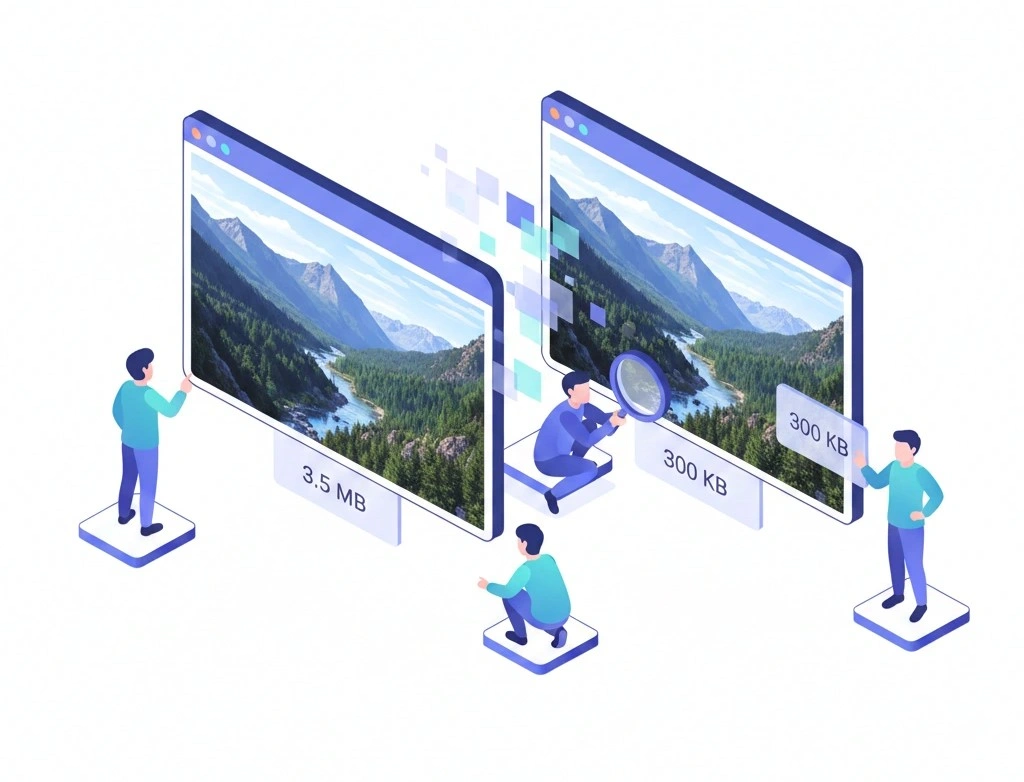
In a world where high-definition visuals are the standard, the weight of our digital files is constantly growing. Whether you are a professional photographer preserving every detail of a sunset or a web developer trying to speed up a site without making the logos look blurry, you’ve likely faced the classic dilemma: size vs. quality.
This is where Lossless Image Compression performs its magic. It allows you to shrink your file sizes while keeping 100% of the original visual data intact. Think of it as professional luggage packing—nothing is thrown away; everything is just rearranged more efficiently to fit into a smaller space.
In this deep dive, we’ll explore how this technology works, why it’s a game-changer for your workflow, and how you can use tools like compressimagepro.com to achieve perfect results every time.
What is Lossless Image Compression?
Lossless image compression is a class of data compression algorithms that allows the original data to be perfectly reconstructed from the compressed data. Unlike "lossy" compression, which permanently discards "unnecessary" bits of information to save space, lossless compression identifies and eliminates statistical redundancy.
When you decompress a lossless file, it is identical bit-for-bit to the original. This is why formats like PNG, TIFF, and GIF are so popular for professional work. They use clever mathematical shortcuts, such as Run-Length Encoding (RLE) or Huffman Coding, to represent the same image using fewer bytes without sacrificing a single pixel’s integrity.
Advantages of Lossless Image Compression
Why should you choose lossless over the smaller file sizes of lossy formats? The benefits go beyond just "looking good."
-
Perfect Fidelity: There are no "artifacts," color banding, or blurry edges. Your images stay as crisp as the moment they were captured.
-
Repeated Editing: Every time you save a lossy JPEG, it loses a little more quality (known as "generation loss"). Lossless files can be saved, edited, and re-saved thousands of times with zero degradation.
-
Transparency Support: Lossless formats like PNG are the gold standard for web graphics and logos because they support an alpha channel (transparency), allowing your graphics to sit perfectly on any background.
-
Archival Value: If you are storing photos for the long term, lossless is the only way to ensure that the "master copy" remains pristine for future use or large-scale printing.
How to Compress Your Image into Lossless Format
Achieving high-quality compression doesn't require expensive software. You can get professional results for free using specialized online tools. Here is the step-by-step guide to getting it right using compressimagepro.com.
1. Upload Your Image
Head over to compressimagepro.com/image-compress. You can simply drag and drop your high-resolution files directly into the browser. The tool supports multiple formats, making it a versatile choice for any project.
2. Select 100% in Quality
To ensure the compression remains truly lossless, look for the quality slider or settings panel. Set the quality to 100%. This tells the algorithm to focus entirely on data efficiency and metadata stripping without altering the actual pixel values of the image.
3. Preview the Output
Before finalizing, compressimagepro.com provides a preview. Look closely at sharp edges and text to ensure they remain perfectly clear. Because you’ve selected the lossless path, the image should look identical to your original.
4. Download Your Lossless Image
Once satisfied, click download. You’ll receive a file that is lighter on your hard drive but identical in beauty to your original shot.
Lossless vs. Lossy Compression: The Ultimate Comparison
To choose the right tool for the job, you need to understand how these two methods differ in practice.
| Feature | Lossless Compression | Lossy Compression |
| Data Retention | 100% (Reversible) | Partial (Irreversible) |
| Image Quality | Identical to original | Slight to heavy degradation |
| File Size | Larger | Significantly smaller |
| Common Formats | PNG, TIFF, GIF, RAW | JPEG, WebP (lossy mode) |
| Best For | Logos, Text, Archiving, Editing | Social Media, Web Photos, Email |
| Generation Loss | None | Increases with every save |
The Magic of Invisible Savings: A Deep Dive into Lossless Image Compression
In a world where high-definition visuals are the standard, the weight of our digital files is constantly growing. Whether you are a professional photographer preserving every detail of a sunset or a web developer trying to speed up a site without making the logos look blurry, you’ve likely faced the classic dilemma: size vs. quality.
This is where Lossless Image Compression performs its magic. It allows you to shrink your file sizes while keeping 100% of the original visual data intact. Think of it as professional luggage packing—nothing is thrown away; everything is just rearranged more efficiently to fit into a smaller space.
In this deep dive, we’ll explore how this technology works, why it’s a game-changer for your workflow, and how you can use tools like compressimagepro.com to achieve perfect results every time.
What is Lossless Image Compression?
Lossless image compression is a class of data compression algorithms that allows the original data to be perfectly reconstructed from the compressed data. Unlike "lossy" compression, which permanently discards "unnecessary" bits of information to save space, lossless compression identifies and eliminates statistical redundancy.
When you decompress a lossless file, it is identical bit-for-bit to the original. This is why formats like PNG, TIFF, and GIF are so popular for professional work. They use clever mathematical shortcuts, such as Run-Length Encoding (RLE) or Huffman Coding, to represent the same image using fewer bytes without sacrificing a single pixel’s integrity.
Advantages of Lossless Image Compression
Why should you choose lossless over the smaller file sizes of lossy formats? The benefits go beyond just "looking good."
-
Perfect Fidelity: There are no "artifacts," color banding, or blurry edges. Your images stay as crisp as the moment they were captured.
-
Repeated Editing: Every time you save a lossy JPEG, it loses a little more quality (known as "generation loss"). Lossless files can be saved, edited, and re-saved thousands of times with zero degradation.
-
Transparency Support: Lossless formats like PNG are the gold standard for web graphics and logos because they support an alpha channel (transparency), allowing your graphics to sit perfectly on any background.
-
Archival Value: If you are storing photos for the long term, lossless is the only way to ensure that the "master copy" remains pristine for future use or large-scale printing.
How to Compress Your Image into Lossless Format
Achieving high-quality compression doesn't require expensive software. You can get professional results for free using specialized online tools. Here is the step-by-step guide to getting it right using compressimagepro.com.
1. Upload Your Image
Head over to compressimagepro.com/image-compress. You can simply drag and drop your high-resolution files directly into the browser. The tool supports multiple formats, making it a versatile choice for any project.
2. Select 100% in Quality
To ensure the compression remains truly lossless, look for the quality slider or settings panel. Set the quality to 100%. This tells the algorithm to focus entirely on data efficiency and metadata stripping without altering the actual pixel values of the image.
3. Preview the Output
Before finalizing, compressimagepro.com provides a preview. Look closely at sharp edges and text to ensure they remain perfectly clear. Because you’ve selected the lossless path, the image should look identical to your original.
4. Download Your Lossless Image
Once satisfied, click download. You’ll receive a file that is lighter on your hard drive but identical in beauty to your original shot.
Lossless vs. Lossy Compression: The Ultimate Comparison
To choose the right tool for the job, you need to understand how these two methods differ in practice.
| Feature | Lossless Compression | Lossy Compression |
| Data Retention | 100% (Reversible) | Partial (Irreversible) |
| Image Quality | Identical to original | Slight to heavy degradation |
| File Size | Larger | Significantly smaller |
| Common Formats | PNG, TIFF, GIF, RAW | JPEG, WebP (lossy mode) |
| Best For | Logos, Text, Archiving, Editing | Social Media, Web Photos, Email |
| Generation Loss | None | Increases with every save |
When to Use Lossy vs. Lossless Image Compression
Choosing between the two is a strategic decision based on where the image will live.
Use Lossless When:
-
Creating Logos and Icons: Sharp lines and flat colors look terrible when compressed with lossy algorithms.
-
Product Photography: If you’re running an e-commerce site, users will zoom in on your products. Lossless ensures those details remain sharp.
-
Text-Heavy Images: Screenshots or infographics with text become unreadable if "compression noise" appears around the letters.
-
Digital Art: If you plan to continue working on a piece in Photoshop or Procreate, always save in a lossless format.
Use Lossy When:
-
Blogging: To keep your site speed high, use lossy compression for large header images or "fluff" photos where extreme detail isn't critical.
-
Social Media: Platforms like Instagram and Facebook will compress your images anyway, so starting with a smaller, optimized lossy file can sometimes give you more control over the final look.
-
Emailing Large Batches: If you need to send 50 photos to a friend just to show them what you did over the weekend, lossy is the way to go.
Top Tips for Selecting Compression Type
-
Check the Dimensions First: Before uploading to compressimagepro.com, ensure your image isn't unnecessarily large (e.g., 5000px wide for a 500px blog slot). Resizing is the first step of compression.
-
Consider the Background: If you need a transparent background, your choice is made for you—you must use a lossless format like PNG.
-
Test the "Invisible" Threshold: For web use, you can often drop a "lossy" quality to 80% without the human eye noticing. However, for "lossless" needs, always stick to 100% quality.
-
Keep a Master Copy: Never compress your only copy of a photo. Always run your files through compressimagepro.com and save the result as a new version.
Lossy vs. Lossless Compression: FAQs
Q: Can I turn a lossy JPEG into a lossless PNG to get the quality back?
A: No. Once data is removed via lossy compression, it is gone forever. Converting a JPEG to a PNG will just create a larger file size without adding any detail back.
Q: Which format is better for SEO?
A: It depends. Google loves speed, which favors lossy. However, Google also loves high-quality user experiences. Using compressimagepro.com to find the "sweet spot" of a light but lossless-quality image is the best strategy for SEO.
Q: Is WebP lossless or lossy?
A: Both! WebP is a modern "next-gen" format that supports both types of compression, often outperforming both PNG and JPEG in terms of file size.
Conclusion
Lossless image compression is the secret weapon for anyone who refuses to compromise on quality. It allows us to maintain the integrity of our digital memories and professional assets while respecting the limits of our storage and bandwidth.
By using professional-grade tools like compressimagepro.com, you can ensure that your images remain stunning, sharp, and perfectly preserved for years to come. The next time you’re ready to upload, remember: you don’t have to lose quality to save space.