Photo Quality Reduced After Upload — How to Fix
2025-01-01 • Manan Patel
Introduction
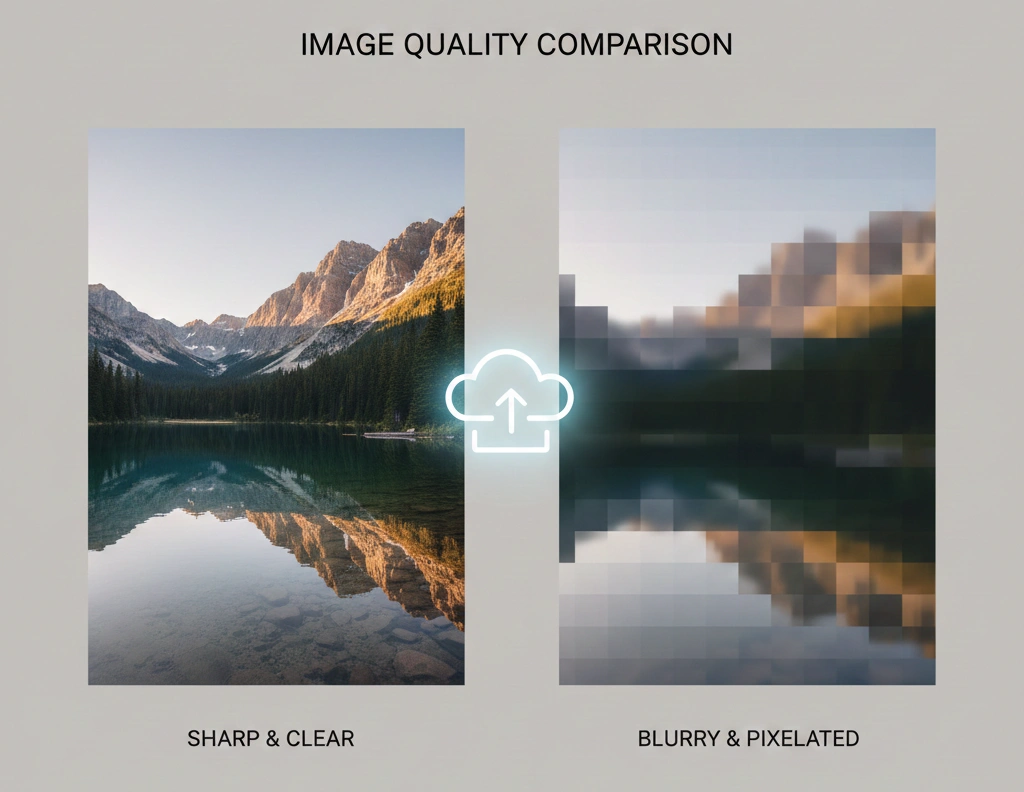
Have you ever uploaded a photo to a website or social media platform, only to realize that the photo quality reduced after upload? What looked sharp and vibrant on your device suddenly appears blurry, pixelated, or washed out online.
This is a common problem faced by bloggers, developers, designers, and everyday users. The good news? It’s fixable.
In this guide, you’ll learn why photo quality reduces after upload, how different platforms process images, and practical steps to preserve image quality without slowing down your website or breaking platform rules.
Why Photo Quality Reduced After Upload Happens
If you’re manually compressing or resizing images before upload, using a reliable image optimization tool makes a big difference. Tools like compressimagepro allow you to reduce image file size while keeping visual clarity intact, helping prevent unexpected quality loss caused by automatic platform compression.
Before fixing the issue, it’s important to understand what causes it. Most quality loss happens automatically, not because you did anything “wrong.”
Automatic Image Compression
Most platforms compress images to:
-
Reduce storage space
-
Improve page loading speed
-
Save bandwidth for users
This compression often removes image data, which results in visible quality loss.
Image Resizing by Platforms
If your uploaded image dimensions are larger than allowed, platforms may:
-
Resize the image
-
Change aspect ratios
-
Downscale resolution aggressively
This can make photos look soft or stretched.
Incorrect File Format
Uploading the wrong image format can reduce quality:
-
JPEG → lossy compression
-
PNG → large size, sometimes auto-compressed
-
WebP → may be reprocessed if unsupported
Choosing the wrong format increases the chance of quality degradation.
Common Platforms That Reduce Photo Quality After Upload
Social Media Platforms
Most social platforms aggressively compress images.
-
Facebook and Instagram downscale images
-
WhatsApp reduces image quality unless sent as a document
-
Twitter compresses large JPEG files
These platforms prioritize speed over visual fidelity.
Websites and CMS Platforms
Content management systems like WordPress often:
-
Create multiple image sizes
-
Compress uploads automatically
-
Apply theme-based resizing
If not configured properly, image quality suffers.
E-commerce Marketplaces
Marketplaces like Amazon, Etsy, and Flipkart enforce strict image rules:
-
Fixed aspect ratios
-
Maximum file size limits
-
Mandatory compression
Ignoring their guidelines leads to poor image rendering.
How to Fix Photo Quality Reduced After Upload
Use the Right Image Dimensions Before Upload
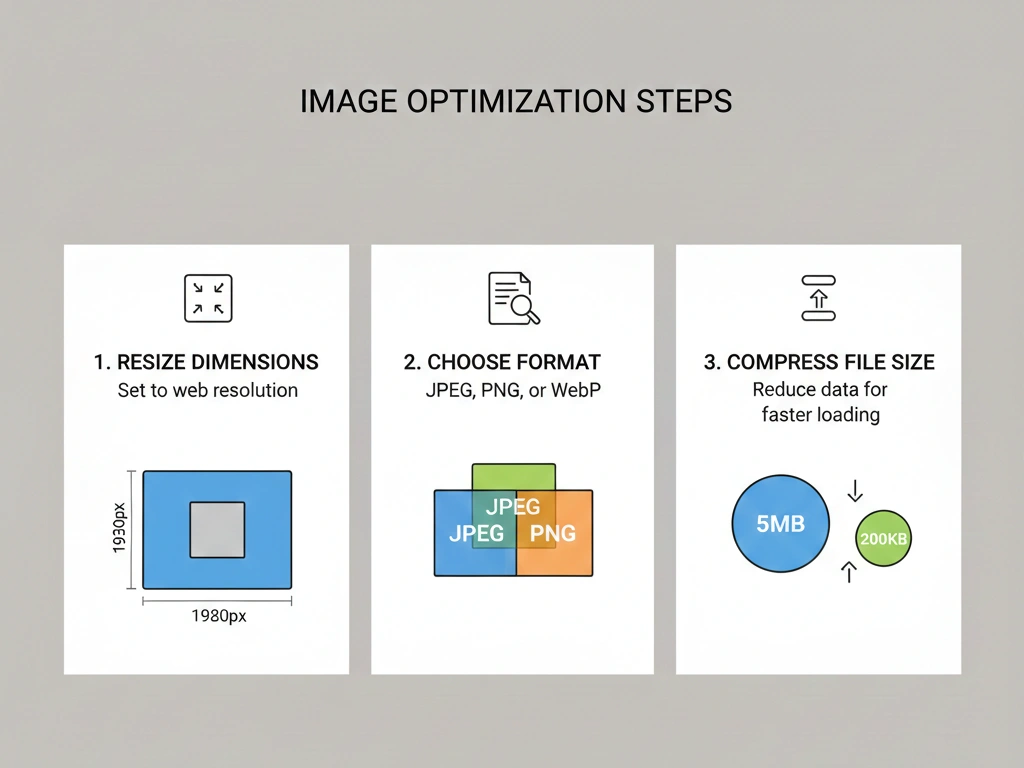
Always resize images before uploading, not after.
Recommended steps:
-
Match platform’s exact width and height
-
Avoid oversized images
-
Maintain original aspect ratio
This prevents platforms from resizing your image poorly.
Choose the Best Image Format
Selecting the correct format makes a big difference.
Best practices:
-
JPEG for photos (use high quality export)
-
PNG for graphics, logos, text-heavy images
-
WebP for websites if supported
Avoid uploading screenshots as JPEGs—they lose clarity fast.
Optimize Images Without Losing Quality
For best results, compress images before uploading them anywhere. A dedicated image compression tool such as https://compressimagepro.com/image-compress lets you control compression levels, ensuring your images remain sharp while loading faster across websites and social platforms.
Use Smart Compression Tools
Not all compression is bad. The key is controlled compression.
Benefits of smart compression:
-
Smaller file size
-
No visible quality loss
-
Faster loading speed
Use tools that balance quality and size instead of automatic platform compression.
Export Images at High Quality Settings
When exporting from editing tools:
-
Set quality between 80–90%
-
Disable unnecessary metadata
-
Avoid multiple re-exports
Repeated exporting causes cumulative quality loss.
Fixing Blurry Images on Websites
Disable Over-Aggressive CMS Compression
Some CMS platforms compress images too much by default.
Check settings for:
-
Image optimization plugins
-
Theme-based resizing
-
CDN image compression
Adjust compression levels or exclude high-quality images.
Serve Images at Correct Display Size
Never rely on CSS to shrink huge images.
Bad practice:
-
Uploading 4000px image
-
Displaying it at 400px
Good practice:
-
Upload image close to actual display size
This keeps images sharp on all devices.
Best Practices to Prevent Photo Quality Loss
Follow these habits consistently to avoid future issues:
-
Always preview images after upload
-
Keep a master copy of original images
-
Upload images at 2× resolution for retina displays
-
Test images on desktop and mobile
Small steps like these prevent most quality problems.
SEO & Performance Balance: Quality vs Speed
High-quality images are great, but performance matters too.
Search engines evaluate:
-
Page load speed
-
Visual stability
-
User experience
The goal is clear images with minimal file size, not maximum resolution at any cost.
A well-optimized image:
-
Looks sharp
-
Loads fast
-
Ranks better in search results
FAQs: Photo Quality Reduced After Upload
Why does my photo look clear before upload but blurry after?
Platforms compress and resize images automatically, removing data that affects sharpness.
What image size should I upload to avoid quality loss?
Upload images close to the platform’s recommended dimensions to prevent resizing.
Is PNG better than JPEG for quality?
PNG preserves quality better but results in larger file sizes. JPEG is better for photos when optimized correctly.
Does image compression always reduce quality?
No. Smart compression reduces file size without visible quality loss.
Why do images look worse on mobile?
Mobile platforms often serve smaller or compressed versions to save bandwidth.
How can I stop WordPress from compressing images?
Adjust media settings, use quality-focused plugins, or disable default compression.